CUE 3 OF 24 · BASIC
Patch the rig
Tell MagicQ what's hanging and where it's listening. You'll patch the demo show's whole rig into an empty show: eight dimmers, six kinds of Chauvet fixture, and 25 LED panels spread across five universes.
Before you start
- The empty show from lesson 2"patch practice", in Live (Chase). Or start a new one now.
- The visualizer handyVIS lets you watch heads appear as you patch.
- The patch sheet belowKeep it open next to MagicQ.
Heads, modes, addresses
MagicQ calls every fixture a head. A dimmer is a head with one channel, a moving light is a head with dozens. To patch one you tell MagicQ three things:
- What it is. MagicQ's head library has a personality file for tens of thousands of fixtures. If yours isn't there, you can ask ChamSys for it.
- Which mode it's in. The same fixture can use more or fewer DMX channels depending on the mode set on the fixture. The modes in MagicQ show the channel count in brackets, like Tour (12). Pick the one that matches the fixture's menu.
- Its address. Universe and start channel, written
2-033: universe 2, channel 33. The head then uses that channel and the ones after it.
Patch heads back to back and each one starts where the one before it ends. That's all an address sheet is. ChamSys's video patches 32-channel spots from 1-001:
Choosing a head
Everything happens in the Patch window (PTCH), in its VIEW HEADS view. You pick the head first, then patch it. Dimmers and media servers have their own shortcut, CHOOSE DIM/MEDIA; everything else goes through CHOOSE HEAD. To find something in the long lists, start typing its name on the keyboard, or scroll with encoder F.
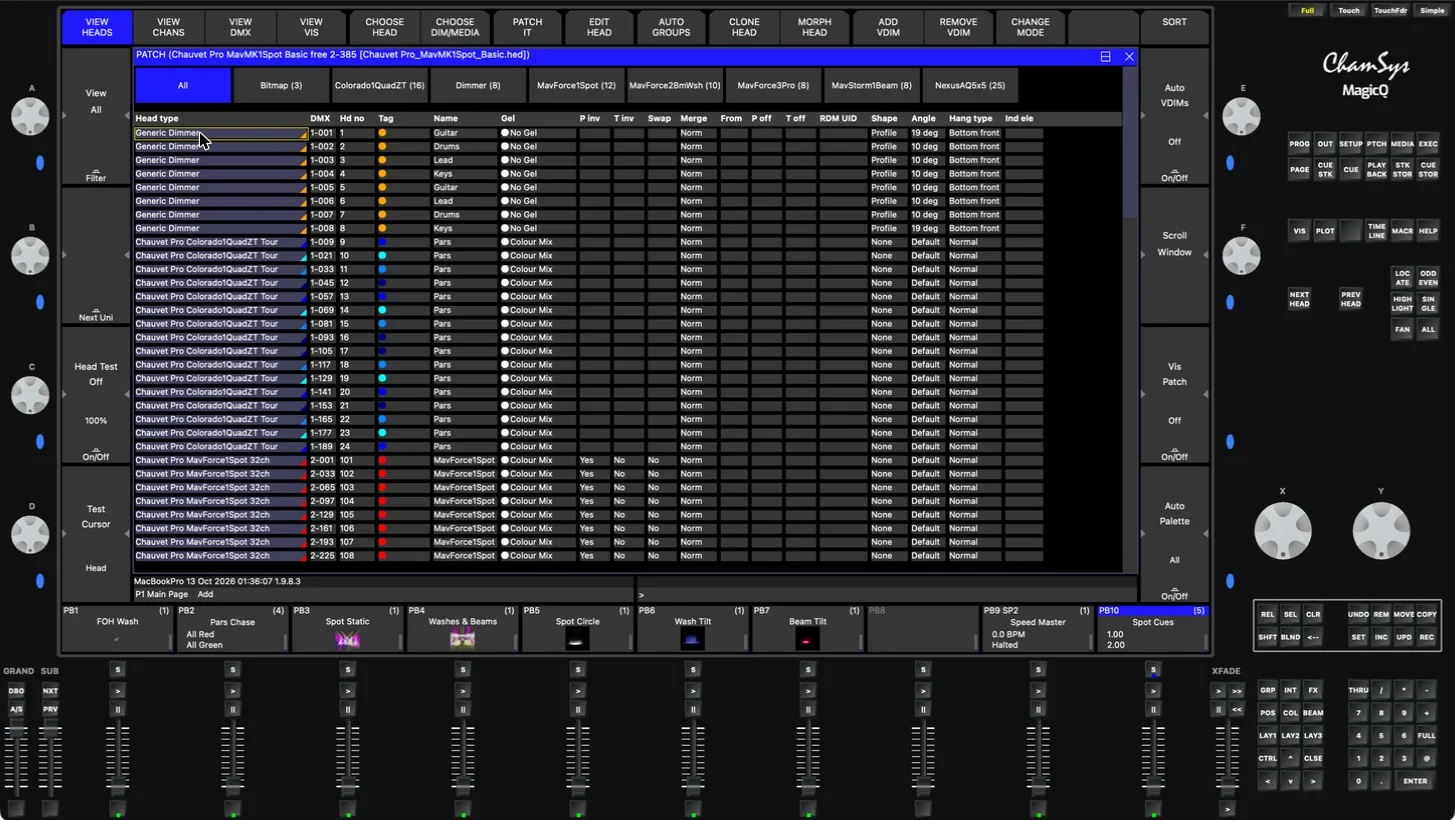
The Patch window, VIEW HEADS. This is the finished demo patch: each head's type, DMX address, head number and name. The tabs above the list filter it by head type.
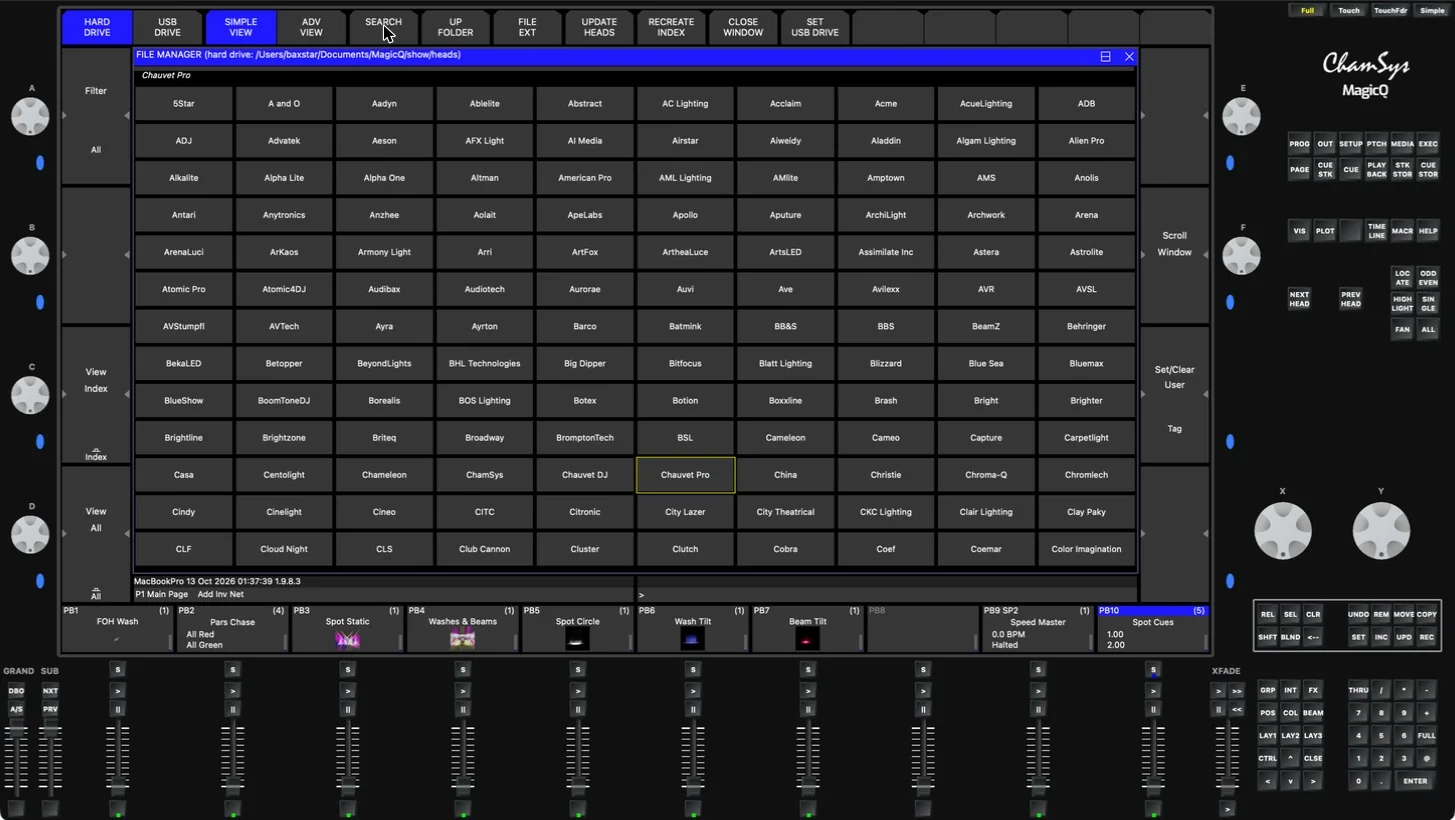
Press CHOOSE HEAD. The head library opens on a list of manufacturers. Tap Chauvet Pro, or press SEARCH and type part of the name.
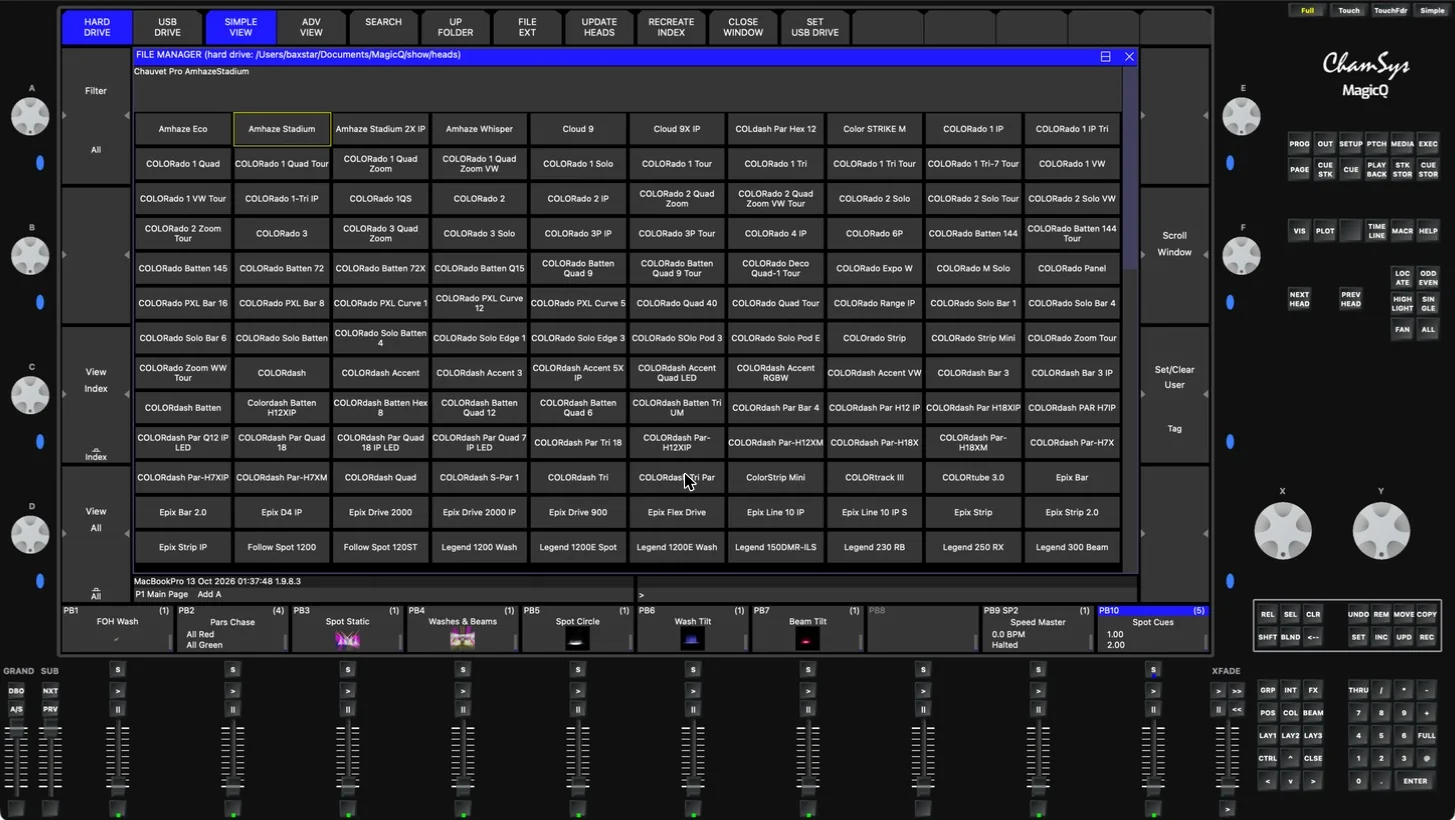
The Chauvet Pro heads. Tap COLORado 1 Quad Zoom. The list scrolls further for the Maverick and Nexus fixtures.
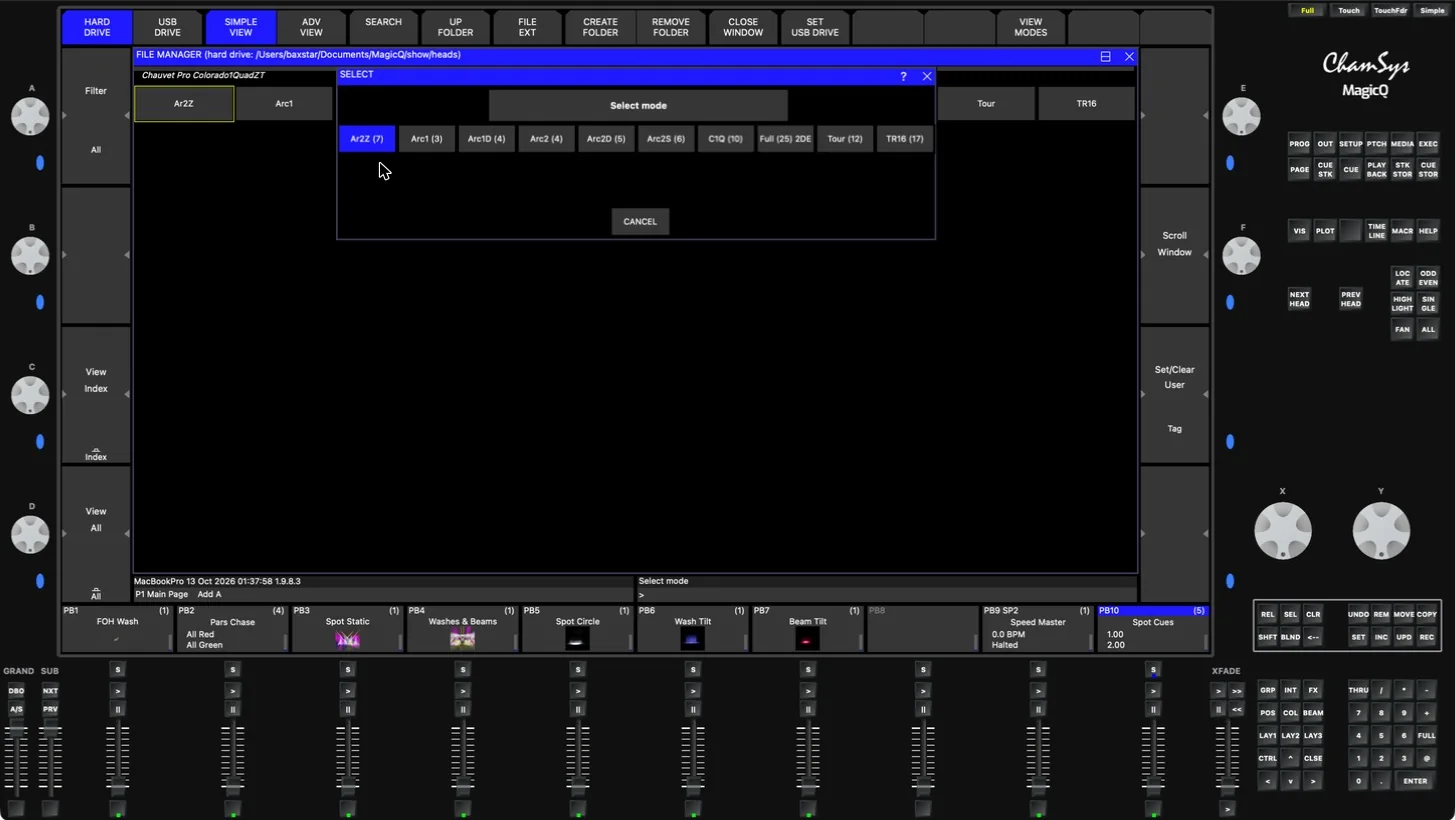
Pick the mode. The number in brackets is how many channels each mode uses. The demo's pars are in Tour (12).
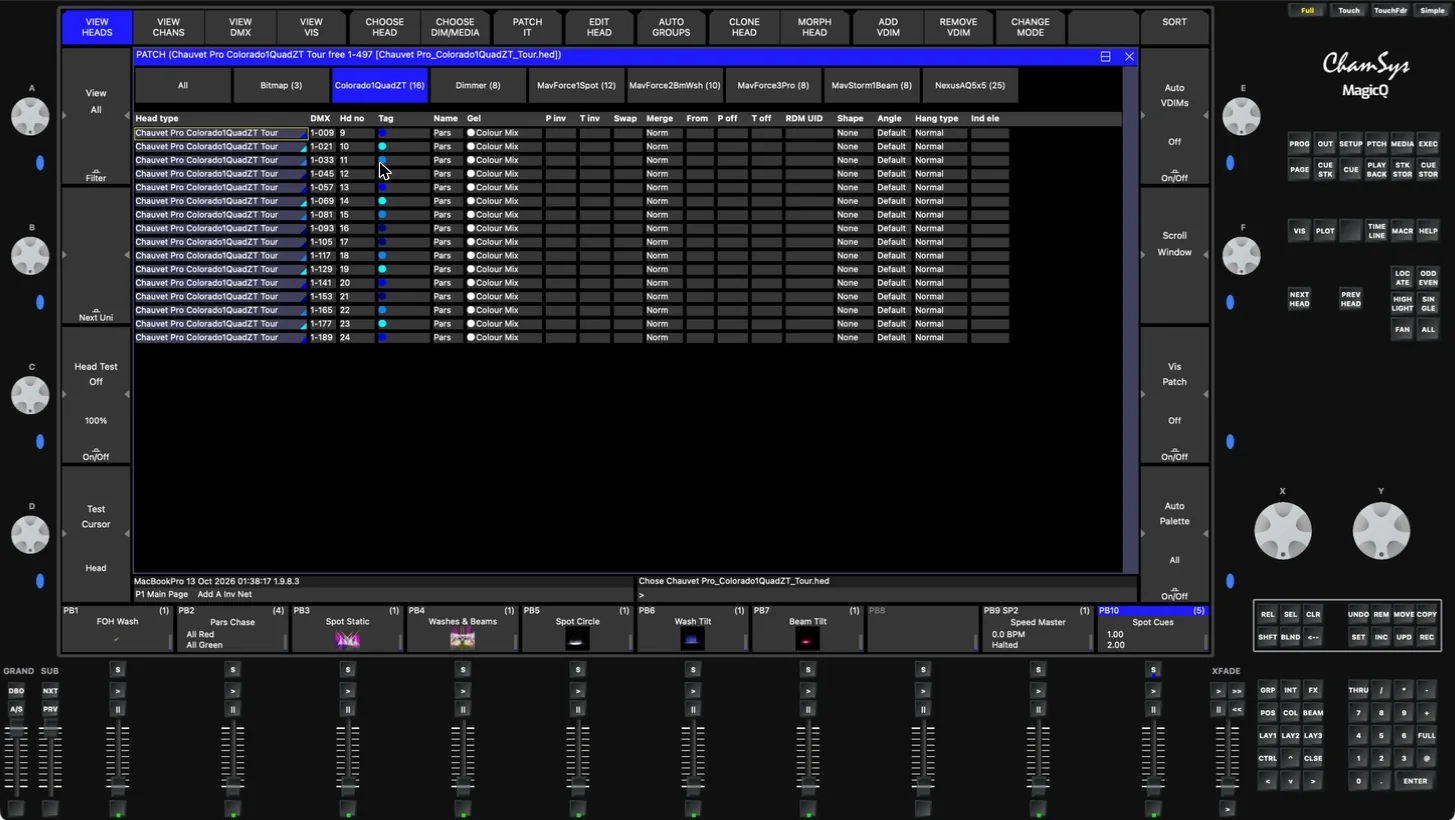
Back in the Patch window. These screens are from the demo show, so its pars are already patched. Choosing a head doesn't patch anything: the title bar shows the head you chose and its next free address, and the status line confirms the head file. Now you'd press PATCH IT.
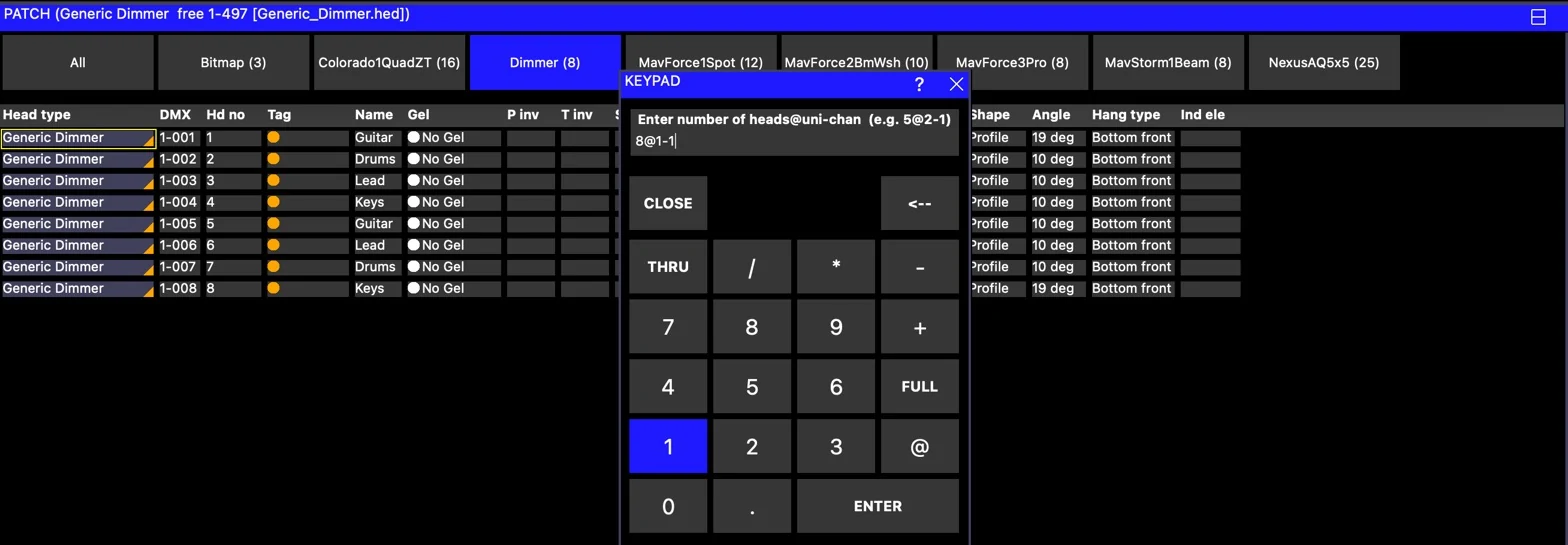
PATCH IT asks for heads and an address: "number of heads@uni-chan". Type it on the keypad or the Mac's keyboard and press ENTER. This one was taken with Generic Dimmer chosen: 8@1-1 is the dimmer row of the patch sheet.
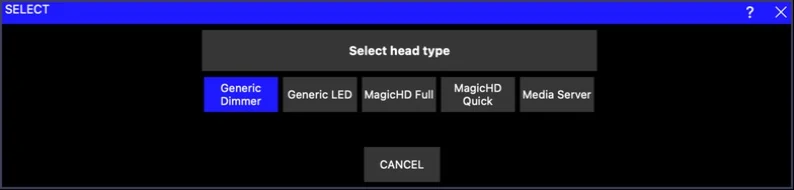
For dimmers, CHOOSE DIM/MEDIA opens a short list instead: Generic Dimmer, Generic LED, MagicHD Full, MagicHD Quick and Media Server.
PATCH IT syntax
Everything you type after PATCH IT follows one pattern, and every part of it is optional. ENTER on its own patches one head at the next free address.
heads @ universe - channel / offset * head number
| Type | Result |
|---|---|
8 ENTER | 8 heads at the next free address (the one in the title bar). |
10@20 | 10 heads from channel 20 of universe 1. |
5@2-1 | 5 heads from universe 2, channel 1, back to back. |
5@2-1/20 | The same, but each head starts 20 channels after the last. |
4/40 | 4 heads at the next free address, 40 channels apart. |
10@+2-1 | 10 heads at the first free address on universe 2. |
10@7-2*201 | 10 heads from universe 7, channel 2, numbered from head 201. |
1@0 | A head with no address yet ("patched unpatched"). |
- The offset has to be at least the head's channel count. The pars use 12 channels, so an offset of 10 won't work: each par would run into the next.
- When you patch several heads and the next one won't fit in what's left of a universe, MagicQ starts it on channel 1 of the next one. That's why 25 Nexus panels of 75 channels can go in as
25@4-1: six fit in each universe (6 × 75 = 450), so they fill universes 4 to 7 and the 25th lands on 8-001. - MagicQ doesn't move the first head. Type
1@9-505for a 12-channel head and it goes exactly there, with its last four channels spilling into universe 10. A real fixture listens to only one universe, so check the last channel fits. - If a head would land on channels that are already used, MagicQ patches the heads before it, then stops with
Channel … already in use by …
. The channel number in that message counts across universes: 2-001 is channel 513. - The very first time you patch in a show, MagicQ asks whether to add the heads to the visualizer. Say yes. After that it doesn't ask again.
Patch trainer
Practice here before you touch MagicQ. Pick a head type, type on the keypad (or your keyboard) exactly as you would after PATCH IT, and press ENTER. The bars are universes 1 to 8, 512 channels each. Work down the patch sheet below until every row has a tick.
Head numbers
Every head gets a head number, and that's what you'll call it by when you program: 1 @ FULL brings head 1 to full, 1 THRU 10 @ 50 sets heads 1 to 10 to half. MagicQ numbers heads in the order you patch them, unless you add * to PATCH IT.
To renumber a batch afterwards, drag down the Hd no column over the heads you want, type the first new number and press ENTER. They're numbered from there, in list order. The list is sorted by head number, so renumbered heads move to their new place.
| Head type | DMX | Hd no |
|---|---|---|
| MavForce1Spot 32ch | 2-001 | 1 |
| MavForce1Spot 32ch | 2-033 | 2 |
| MavForce1Spot 32ch | 2-065 | 3 |
| MavForce1Spot 32ch | 2-097 | 4 |
Dragged: the cells go yellow
| Head type | DMX | Hd no |
|---|---|---|
| MavForce1Spot 32ch | 2-001 | 101 |
| MavForce1Spot 32ch | 2-033 | 102 |
| MavForce1Spot 32ch | 2-065 | 103 |
| MavForce1Spot 32ch | 2-097 | 104 |
Numbered from 101, in list order
MagicQ lets two heads share a number and doesn't warn you, and picking heads by number on the keypad then gets confusing. Keep numbers unique; numbering by type (spots from 101, washes from 201) makes that easy.
Moving a head
Arrived at the venue and a fixture's on a different address? Put the cursor in its DMX cell, type the new universe and channel, such as 5-1, and press ENTER. You don't need the 1@ part, because the head's already patched. Everything you've programmed for it moves with it.
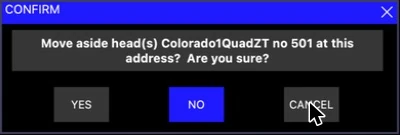
If the new address is already in use, MagicQ asks first:
Testing heads
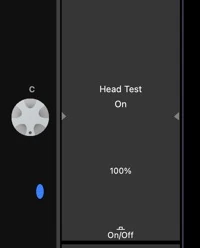
Encoder C's soft button in the Patch window is Head Test. Turn it on and the row under the cursor turns red, and that head locates: a dimmer goes to full, a moving light comes on, open white and centered. Move down the list with the arrow keys to check each fixture answers, then press the soft button again to turn it off.
| Head type | DMX | Hd no |
|---|---|---|
| Generic Dimmer | 1-001 | 1 |
| Generic Dimmer | 1-002 | 2 |
| Generic Dimmer | 1-003 | 3 |
| Generic Dimmer | 1-004 | 4 |
Row under the cursor: red, and on
Placing heads in the visualizer
To put heads where they hang in your rig, press VIEW VIS in the Patch window, tap the Vis Heads tab, drag down the rows to select a batch of heads, and read the encoder boxes: they now move and rotate heads in the visualizer. ChamSys's video lifts the spots into the air, presses FAN to spread them out, turns FAN off again, then raises the washes a little.
The demo's patch
This is the rig in ChauvetDemo2024, read from the show file on your Mac. It matches the patch sheet in ChamSys's course. The demo numbers its heads by type (spots from 101, washes from 201 and so on); add the * part if you want your practice show to match.
| Fixture | Mode | Qty | Address | Type in PATCH IT | Heads in the demo |
|---|---|---|---|---|---|
| Generic Dimmer | 1 ch | 8 | 1-001 to 1-008 | 8@1-1 | 1–8 |
| Chauvet Pro COLORado 1 Quad Zoom | Tour, 12 ch | 16 | 1-009, 1-021 … 1-189 | 16@1-9 | 9–24 |
| Chauvet Pro Maverick Force 1 Spot | 32 ch | 12 | 2-001, 2-033 … 2-353 | 12@2-1*101 | 101–112 |
| Chauvet Pro Maverick Force 2 Beam Wash | Basic, 20 ch | 10 | 3-001, 3-021 … 3-181 | 10@3-1*201 | 201–210 |
| Chauvet Pro Maverick Storm 1 Beam | 21 ch | 8 | 3-201, 3-222 … 3-348 | 8@3-201*301 | 301–308 |
| Chauvet Pro Maverick Force 3 Profile | Basic, 37 ch | 8 | 1-201, 1-238 … 1-460 | 8@1-201*113 | 113–120 |
| Chauvet Pro Nexus AQ 5x5 | 75 ch | 25 | 4-001 … 8-001 | 25@4-1*401 | 401–425 |
The demo also has three Generic Bitmap heads (20001–20003) on universe 8. MagicQ makes those itself when you set up pixel mapping, so you don't patch them here; that's lesson 24. The eight dimmers are named Guitar, Drums, Lead and Keys.
Follow along
Work in your "patch practice" show, not the demo.
-
1
Open the Patch window
Press PTCH, then VIEW HEADS.
An empty list: nothing's patched yet.
-
2
Patch the eight dimmers
Press CHOOSE DIM/MEDIA, then Generic Dimmer. Press PATCH IT, type
8@1-1and press ENTER. When MagicQ asks about adding the heads to the visualizer, press YES.Eight Generic Dimmer rows, at 1-001 to 1-008.
-
3
Test them
Put the cursor on the first dimmer and press encoder C's soft button, Head Test. Move the cursor down the list, then press the soft button again to stop.
The row under the cursor turns red and that head locates: a dimmer goes to full, and a moving light comes on open white, centered. Watch the visualizer, or your real fixtures if they're connected.
-
4
Patch the pars
CHOOSE HEAD › Chauvet Pro › COLORado 1 Quad Zoom › Tour (12). Then PATCH IT,
16@1-9, ENTER.16 rows from 1-009 to 1-189, twelve channels apart.
-
5
Patch the spots
Choose the Maverick Force 1 Spot in its 32-channel mode. If you can't see it, press SEARCH and type part of the name. Patch
12@2-1(or12@2-1*101to number them like the demo).12 spots on universe 2, from 2-001 to 2-353.
-
6
Patch the washes and the beams
Maverick Force 2 Beam Wash, Basic mode:
10@3-1. Then Maverick Storm 1 Beam, 21-channel mode:8@3-201.Washes from 3-001 to 3-181, beams from 3-201 to 3-348.
-
7
Patch the profiles
Maverick Force 3 Profile, Basic mode:
8@1-201.They slot into the gap on universe 1, from 1-201 to 1-460.
-
8
Patch the Nexus panels
Nexus AQ 5x5 in its 75-channel mode:
25@4-1.Six panels per universe on 4, 5, 6 and 7, and the last one on 8-001. You typed one start address; MagicQ moved on by itself.
-
9
Renumber, then put it back
Drag down the Hd no column over the eight dimmers, type
501and press ENTER. Then drag over them again (they've moved), type1and press ENTER.The dimmers become 501 to 508 and move to the bottom of the list, which is sorted by head number. The second time they're back to 1 to 8, at the top.
-
10
Move a head, then put it back
Put the cursor in the first dimmer's DMX cell, type
9-1and press ENTER. Then type1-1in the same cell and press ENTER.The dimmer moves to 9-001, then back to 1-001. If MagicQ ever asks to move other heads aside, press NO and pick a free address.
-
11
Place the spots in the visualizer
Press VIEW VIS and tap its Vis Heads tab, which lists every head. Drag down the spots' rows to select them, then turn the Y wheel to raise them. Press FAN, turn the X wheel to spread them across the stage, and press FAN again to turn it off. Watch MagicVis, or press VIS.
The spots rise, then fan out side to side. Press VIEW HEADS to get back to the patch list.
-
12
Use the head filter
Press CHOOSE HEAD, then encoder A's soft button, Filter, and pick Patched. Set it back to All, then press CLOSE WINDOW without choosing anything.
Only head types already in this show are listed: a quick way to add more of something you've already got.
-
13
Check it and save
In VIEW HEADS, compare every address with the patch sheet. Head-test one of each type. Then SETUP › VIEW SETTINGS › SAVE SHOW.
87 heads, matching the sheet. Lesson 4 goes back to the full demo show, with groups and cues already built.
Drill
Quick check
Next cue, in production
4 · Groups and your first cues