CUE 2 OF 24 · BASIC
Start a show
Start a new show the way ChamSys's training does it, then learn what lives in memory and on disk, which programming mode to pick, what tracking really means, and where your DMX goes: out of the Compact Connect or onto the network as Art-Net.
Before you start
- Lesson 1 doneYou know where SETUP and the soft buttons are.
- Anything you care about savedThis lesson starts a new show, which empties MagicQ's memory.
- Compact Connect plugged inSo you can see its outputs in the DMX settings.
Start a new show
A new show takes five presses. Read this section through first; you'll do it for real in the steps further down.
- SETUPopen Setup
- VIEW SETTINGStop left
- NEW SHOWtop row
- YESerase memory
- Live (Chase)pick a mode
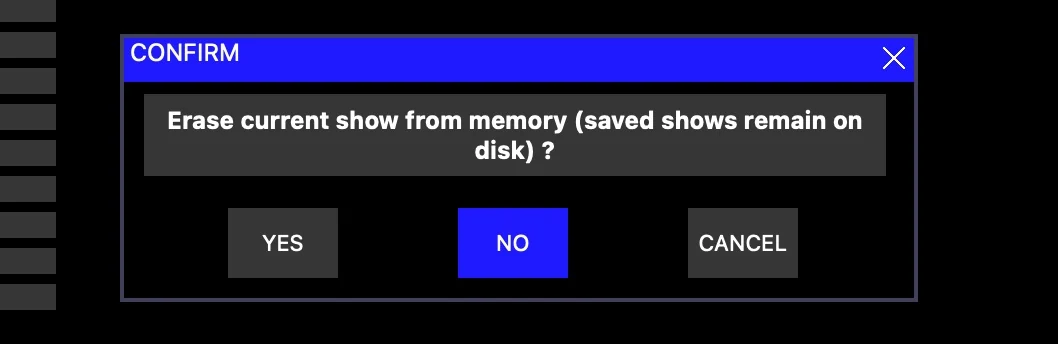
NEW SHOW asks before it does anything. Erasing memory doesn't delete any saved show: the demo, your practice copy and every other file stay on disk, ready to load again.
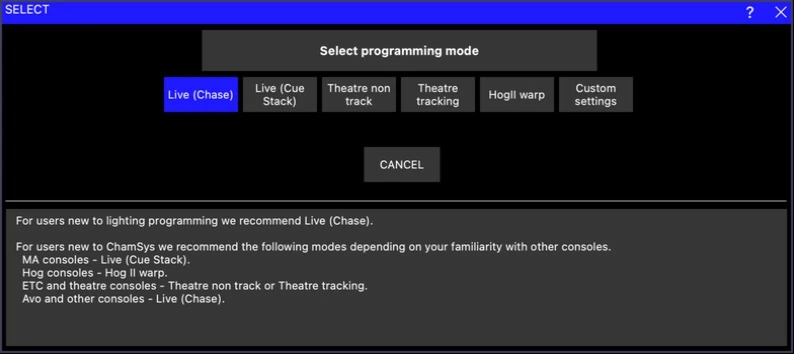
Next comes the programming mode, explained further down. MagicQ shows ChamSys's own advice underneath the buttons.
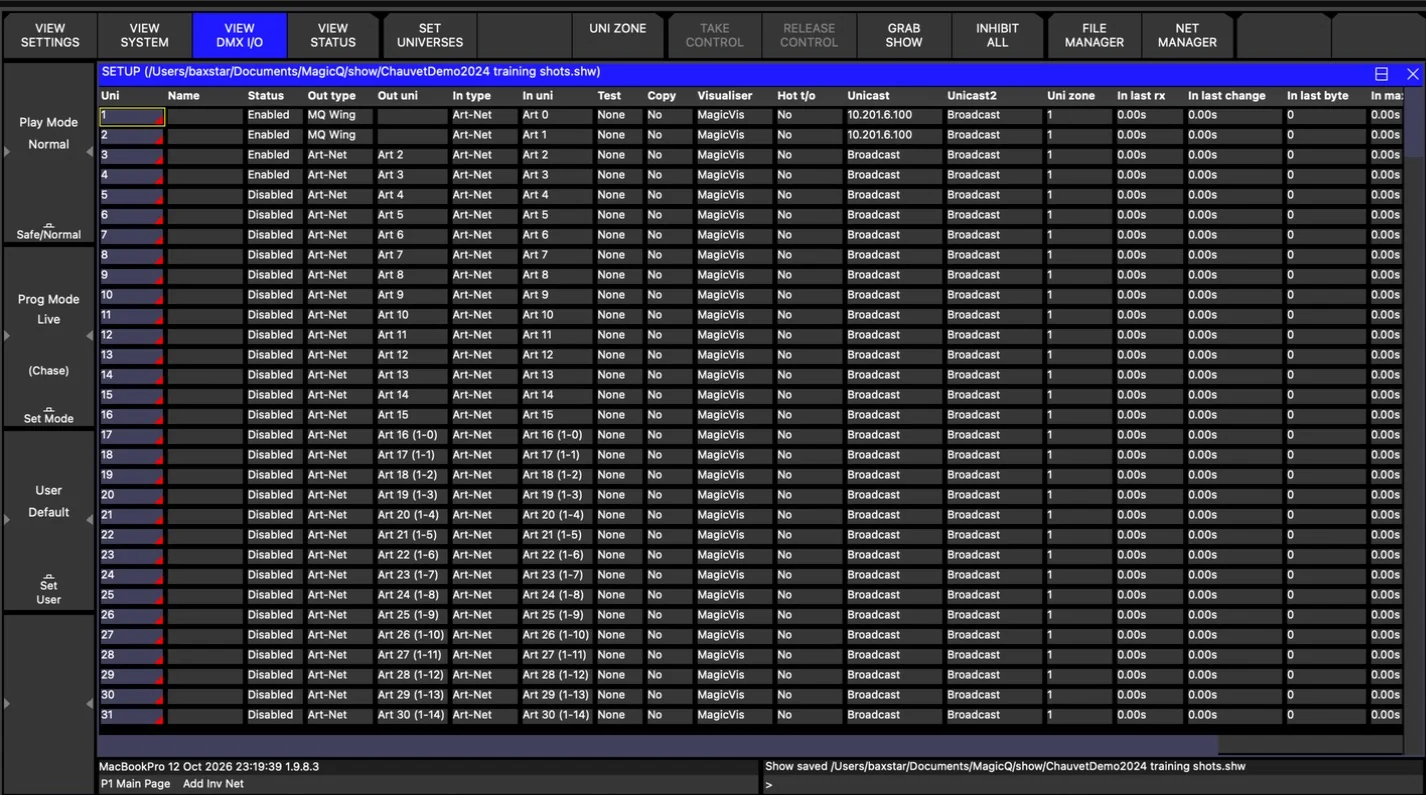
Until you save it, the new show is named with a date stamp, such as TueOct131511142026.sbk, in the Setup window's title bar. Save it under a proper name straight away.
Memory and disk
The show you're working on lives in MagicQ's memory. Show files live on the Mac's disk, in Documents › MagicQ › show. Three buttons and an automatic backup move things between the two, and only one of them is scary.
- LOAD SHOW replaces what's in memory with the show file you pick.
- SAVE SHOW writes what's in memory to a .shw file. Save under new names as you go (gala-patch, gala-final) so you can step back if something goes wrong.
- Backups: shortly after you change anything, MagicQ saves a .sbk copy of your show by itself and flashes AutoS in the status display. It saves one again when you quit with the QUIT soft button, and reloads that backup next time it starts, so you pick up where you left off.
- NEW SHOW clears the patch, all programming and all palettes. It keeps settings that belong to the computer, like the DMX outputs.
Programming modes
A programming mode is a bundle of settings that makes MagicQ behave like the kind of desk you're used to. Every setting in the bundle can still be changed one by one later.
| Mode | Faders | Recording a cue stores | Several cues on one playback | ChamSys suggests it for |
|---|---|---|---|---|
| Live (Chase) | Start the cue stack | Everything in the programmer | Chase timing | New to lighting desks; Avo users |
| Live (Cue Stack) | Start the cue stack | Only what you changed (tracking)* | Cue timing | MA users |
| Theatre non track | Set levels only | Everything in the programmer | Cue timing | ETC and theater desks |
| Theatre tracking | Set levels only | Only what you changed | Cue timing | ETC and theater desks |
| Hog II warp | Set levels only | Only what you changed, plus Hog-style extras | Cue timing | Hog users |
| Custom settings | Copies the settings from another show file. | |||
ChamSys's own documents disagree about Live (Cue Stack). The training course has it recording everything in the programmer; the quick start and the settings table have it tracking, storing only what's changed. Don't guess: after picking a mode, look at Setup › VIEW SETTINGS › Prog tab › Programmer Tracking. Yes means tracking.
You can change mode at any time. In the Setup window, encoder B reads Prog Mode; its soft button, Set Mode, opens the same picker. Changing mode doesn't touch anything you've already recorded, only what you record next.
This course uses Live (Chase), the mode the demo show uses.
Tracking
Tracking decides what goes into a cue when you record it. With tracking off, MagicQ stores everything in the programmer. With it on, MagicQ stores only the attributes you've changed since the last cue, and everything else carries over ("tracks") from the cues before. Step through the example to see why that matters.
Two cues, two ways
Spots are on from a playback. You select them but forget LOCATE, pick magenta and record a new cue. With tracking off, that cue holds only the color, because color was all that was in the programmer. Clear the programmer, go to the new cue, and the spots go dark: the cue gives them no intensity. The fix is to select, LOCATE, then set color and position before you record. In a tracking mode, recorded onto the same playback after a cue that had them lit, the spots would have stayed on, because the intensity carries over from the cue before.
DMX outputs
MagicQ PC can output 64 universes, each 512 DMX channels. For each universe, Setup › VIEW DMX I/O says whether it's switched on (Status), how it leaves the computer (Out type) and on which network universe (Out uni).
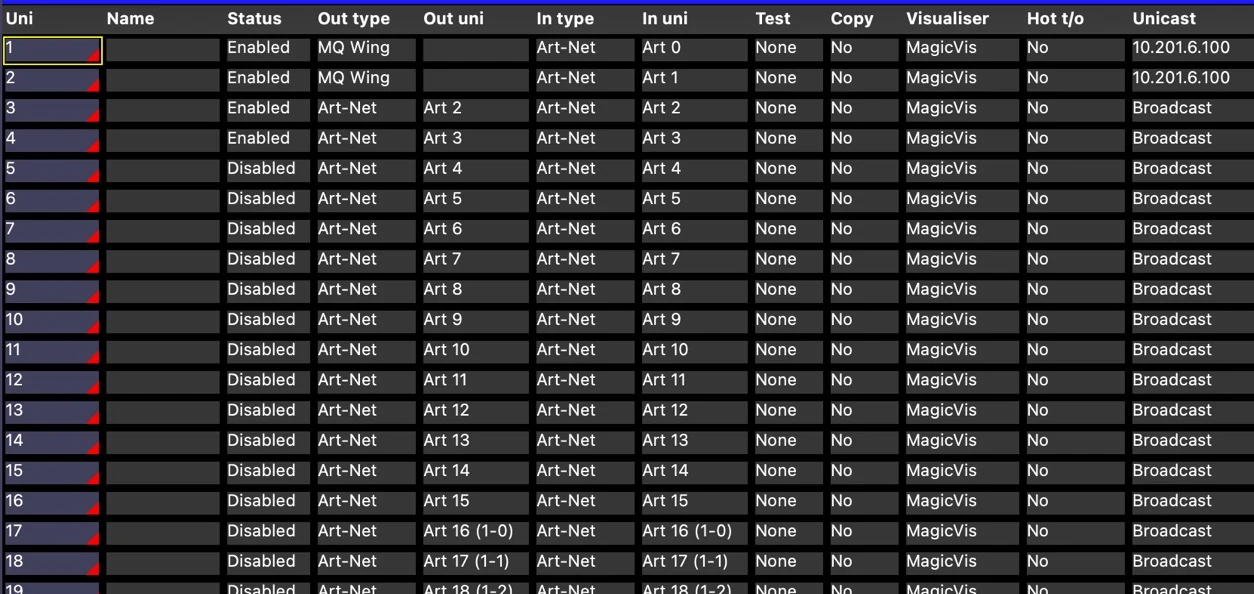
- MQ Wing sends a universe out of the DMX ports on a ChamSys wing or Connect. The Compact Connect has two ports; by default they carry universes 1 and 2.
- Art-Net sends a universe over the network to a node, which turns it into DMX. MagicQ broadcasts it, so nodes don't need pairing. Network outputs only send when Status is Enabled.
- Art-Net counts from 0, so MagicQ's universe 1 goes out as Art-Net universe 0 by default (shown as Art 0). From Art 16 MagicQ adds the sub-net and universe in brackets: Art 16 (1-0) means sub-net 1, universe 0.
- A node needs to listen to the same Art-Net universes MagicQ sends. Most nodes, ChamSys's included, default to four universes in a row from a start universe (0 to 3 on the first node), and let you set each port by hand. Set your PKnight's ports to the universes MagicQ sends: 2 and 3.
Where does a universe go?
Drag to pick a MagicQ universe. Shows MagicQ's default Art-Net numbering.
Universes 3 and 4 are already sent as Art-Net 2 and 3. If those are meant for your PKnight four-port node, set its ports to listen to Art-Net universes 2 and 3. Lesson 3 patches the demo rig across universes 1 to 8, so with these settings only the heads on universes 1 to 4 would reach real fixtures.
Follow along
NEW SHOW erases the show in memory. Anything you haven't saved is gone. Saved show files on disk, including the demos, are safe.
-
1
Save what you've got
If you changed your practice copy in lesson 1, press SETUP, VIEW SETTINGS, then SAVE SHOW. MagicQ asks for a name: press RET to keep the current one.
The status line under the windows confirms the save.
-
2
Start a new show
Press SETUP, VIEW SETTINGS, then NEW SHOW. MagicQ asks you to confirm. Press YES.
MagicQ's own wording: erase from memory, saved shows remain on disk. -
3
Pick Live (Chase)
In Select programming mode, press Live (Chase).
The playback legends go blank: there's nothing programmed. Encoder B in the Setup window reads Prog Mode Live (Chase). Until you save, the Setup title bar shows a date-stamped name such as TueOct131511142026.sbk.
-
4
Check the tracking setting
In VIEW SETTINGS, tap the Prog tab and find Programmer Tracking. Look, don't change.
Live (Chase) sets it to No: every cue you record will hold everything in the programmer.
-
5
Read your DMX outputs
Press VIEW DMX I/O. Read the Status, Out type and Out uni of universes 1 to 4.
They're the same as before the new show (1–2 MQ Wing, 3–4 Art-Net), because output settings belong to the computer, not the show.
-
6
Find sub-net numbering
Scroll down to universe 17 and read its Out uni.
Art 16 (1-0): sub-net 1, universe 0. Match it with the slider above.
-
7
Save the empty show
Press VIEW SETTINGS, then SAVE SHOW, and name it patch practice. Lesson 3 patches into it.
The Setup window's title bar shows the new file name.
Drill
Quick check
Next cue
3 · Patch the rig